


No Doubt Facebook is really a great place to stay in touch with your friends and family and to discover new friends.If you have a lot of friends on Facebook then your wall is look like battle ground with spam.Some facebook applications are continuously posting on your wall without your permission. The only solution is manually blocking each offending application with automated messages laden with images and graphics being posted on your Facebook wall.
Follow the procedure below to know how to do it
Step 1: Login to your facebook account.
Step 2: Go to Account -> Privacy Settings.
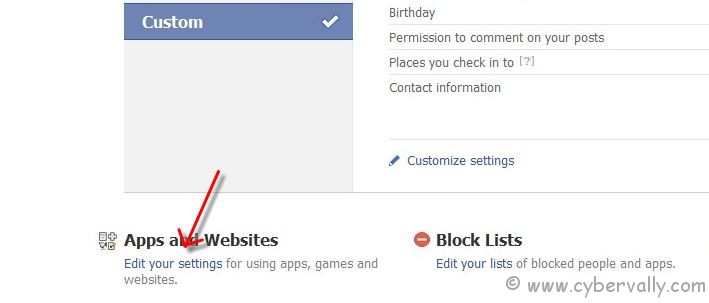
Step 3: Now click on “Edit Settings†on Apps and Websites.
Step 4: Now select app and click on “Edit Settingsâ€. now you can control app with remove features.
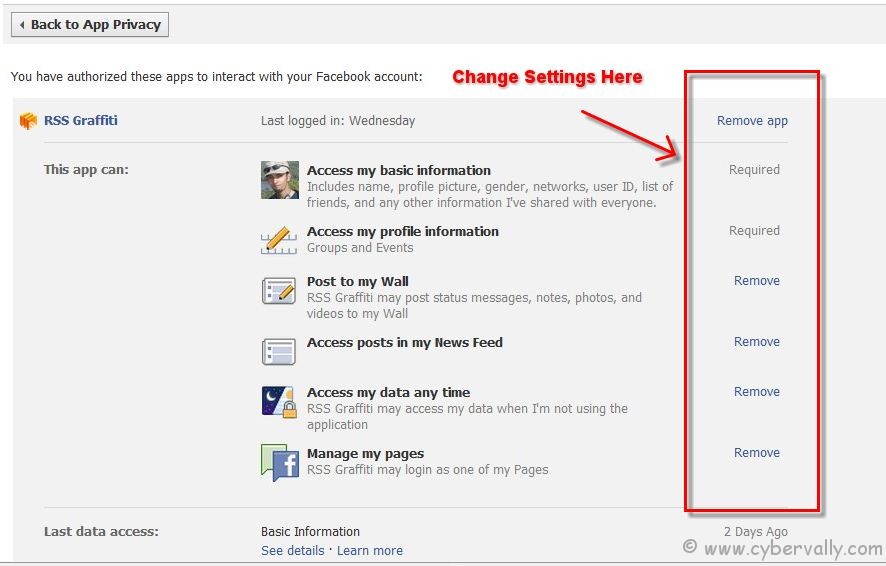
Now you are done. In future that application will no more post any thing on your wall.
If you’re a Facebook user and want to keep up on the latest Technology news why don’t you join the CyberVally Facebook page?
If you enjoyed reading this post, please consider leaving a comment below or subscribing to the feed


3 Comments