

Build your own network-wide ad blocker for a cleaner, faster, and more private internet experience.
Have you ever wondered how to block advertisements across all your devices without installing an ad-blocking extension on every browser? Imagine browsing the internet, watching videos, or using mobile apps without being constantly interrupted by annoying advertisements, trackers, and unwanted pop-ups.
What if I told you that you could achieve this using a small, affordable computer like a Raspberry Pi?
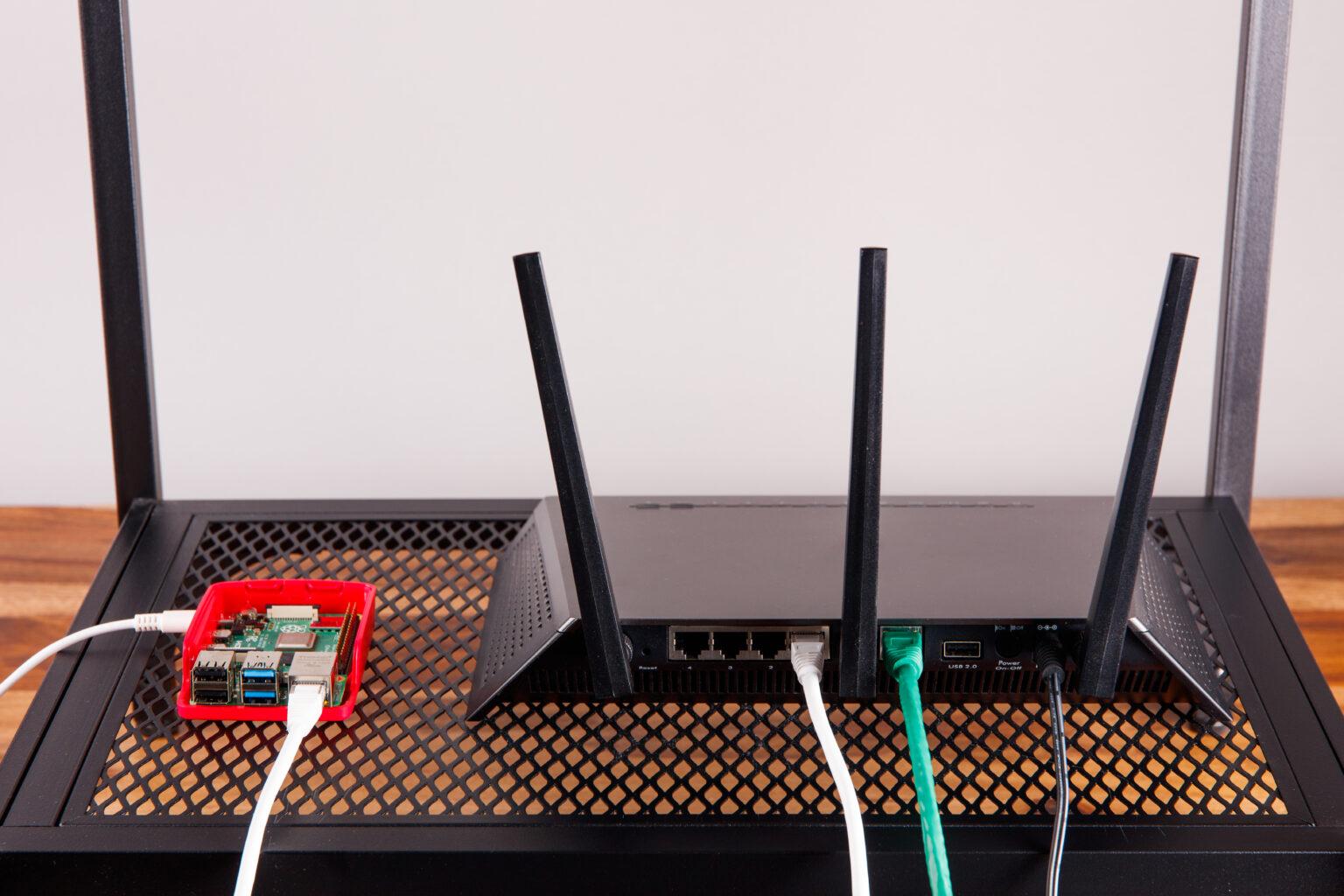
In this guide, we’ll explore how to turn a Raspberry Pi into a network-wide ad blocker using Pi-hole, a powerful DNS-based ad-blocking solution. Once configured, Pi-hole can protect almost every device connected to your home network, including smartphones, laptops, desktops, smart TVs, and tablets.
What Is Pi-hole?
Pi-hole is a free and open-source DNS sinkhole designed to block advertisements and tracking domains at the network level.
Instead of relying on browser extensions, Pi-hole works by filtering DNS requests before they reach advertising and tracking servers.
Whenever a device tries to access an advertising domain, Pi-hole checks the request against its blocklists. If the domain is identified as unwanted, the request is blocked.
The result? Fewer advertisements, reduced tracking, and a cleaner browsing experience across your entire network.
Why Use a Raspberry Pi?
A Raspberry Pi is an excellent platform for running Pi-hole because it is:
- Low power consumption: Can run 24/7 without significantly increasing electricity costs.
- Affordable: No need to purchase an expensive dedicated server.
- Compact: Small enough to sit next to your router.
- Reliable: Suitable for continuously running lightweight network services.
- Flexible: Can also host other useful self-hosted services.
A Raspberry Pi Zero 2 W, Raspberry Pi 3, Raspberry Pi 4, or Raspberry Pi 5 can be used, depending on your requirements.
How Does Pi-hole Work?
Before installing Pi-hole, let’s understand how it works.
When you browse a website, your device needs to translate the website’s domain name into an IP address. This process is called DNS (Domain Name System) resolution.
Normally, your device sends DNS requests to your router, ISP, or a public DNS provider.
With Pi-hole configured as your network’s DNS server, the process changes:
- Your device requests a website or service.
- The DNS request is forwarded to Pi-hole.
- Pi-hole checks the requested domain against its blocklists.
- If the domain is legitimate, Pi-hole forwards the request to an upstream DNS server.
- If the domain is associated with advertising or tracking, Pi-hole blocks the request.
- Your device receives the appropriate DNS response.
This filtering happens automatically without requiring individual software installations on your devices.
What You Need
Before getting started, make sure you have the following:
- Raspberry Pi (Zero 2 W, 3, 4, or 5).
- MicroSD card (16GB or larger recommended).
- Raspberry Pi power supply.
- Ethernet cable (recommended for stable connectivity).
- Home router with administrator access.
- Raspberry Pi OS Lite.
- Internet connection.
An Ethernet connection is recommended because your DNS server should remain consistently available to all devices.
Step 1: Install Raspberry Pi OS
First, install Raspberry Pi OS on your Raspberry Pi.
- Download Raspberry Pi Imager from the official Raspberry Pi website.
- Insert your microSD card into your computer.
- Open Raspberry Pi Imager.
- Select your Raspberry Pi model.
- Choose Raspberry Pi OS Lite (64-bit), where supported.
- Configure your hostname, username, password, Wi-Fi (if required), and SSH access.
- Write the operating system to the microSD card.
Insert the microSD card into your Raspberry Pi and power it on.
Connect to your Raspberry Pi through SSH:
ssh username@raspberrypi.local
Alternatively, use its assigned IP address.
Update the system:
sudo apt update && sudo apt full-upgrade -y
Step 2: Assign a Static IP Address
One of the most important steps is ensuring your Raspberry Pi always has the same IP address.
If its IP address changes, devices on your network may lose access to Pi-hole.
The easiest approach is to configure a DHCP reservation in your router.
For example:
- Raspberry Pi IP: 192.168.1.10
- Subnet Mask: 255.255.255.0
- Gateway: 192.168.1.1
- DNS Server: 192.168.1.10
These are example addresses. Your actual network configuration may differ.
Step 3: Install Pi-hole
Pi-hole provides an official automated installation script.
Run the following command:
curl -sSL https://install.pi-hole.net | bash
Follow the installation wizard.
During installation:
- Select your network interface.
- Confirm your static IP address.
- Choose an upstream DNS provider, such as Cloudflare, Google, or Quad9.
- Select your preferred blocklists.
- Enable the web administration interface.
- Install the recommended web server and required components.
Once installation is complete, the installer will display your admin password.
You can also set or change it using:
pihole setpassword
Step 4: Access the Pi-hole Dashboard
Open your browser and enter:
http://192.168.1.10/admin
Replace the example IP address with your Raspberry Pi’s actual IP address.
Log in using your administrator password.
The dashboard provides useful information, including:
- Total DNS queries.
- Queries blocked.
- Percentage of queries blocked.
- Frequently requested domains.
- Frequently blocked domains.
- Connected network clients.
This dashboard gives you a real-time overview of what’s happening on your network.
Step 5: Configure Your Router to Use Pi-hole
This is where the magic happens!
To enable network-wide ad blocking, configure your router’s DHCP settings to distribute your Raspberry Pi’s IP address as the DNS server.
For example:
Primary DNS: 192.168.1.10
Secondary DNS: Leave blank if your router permits it.
Important: Avoid configuring a public DNS server as a secondary DNS server if you expect all clients to use Pi-hole. Some devices may bypass Pi-hole by using the alternative server.
Save the router settings and reconnect your devices or renew their DHCP leases.
All devices receiving Pi-hole as their DNS server will now benefit from network-wide DNS filtering.
If your router does not allow custom DNS settings, you may be able to disable its DHCP service and use Pi-hole’s DHCP server instead. Make sure only one DHCP server is active on your network.
Step 6: Test Your Ad Blocking
Once everything is configured, visit a few websites and check whether advertising and tracking requests are being blocked.
You can also open the Pi-hole dashboard and monitor the DNS query activity.
Try visiting:
Remember that results vary depending on the websites, applications, blocklists, and DNS configuration.
Useful Pi-hole Commands
Here are some useful commands for managing your installation:
| Command | Function |
|---|---|
pihole status | Check Pi-hole status |
pihole enable | Enable blocking |
pihole disable | Temporarily disable blocking |
pihole -g | Update gravity lists |
pihole restartdns | Restart DNS resolver |
pihole setpassword | Set admin password |
pihole -v | Check installed versions |
Advantages of Using Pi-hole
1. Network-wide ad blocking
Block many advertising and tracking domains across multiple devices without installing browser extensions individually.
2. Improved privacy
Reduce requests to known tracking and analytics domains.
3. Reduced bandwidth usage
Blocked requests do not need to download advertising content, potentially saving bandwidth.
4. Cleaner browsing experience
Enjoy fewer unwanted advertisements and tracking requests across supported applications and websites.
5. Centralized management
Manage blocklists, monitor DNS activity, and configure exceptions from one dashboard.
6. Cost-effective solution
Once installed, Pi-hole is free to use. Your main costs are the Raspberry Pi hardware and electricity.
Limitations You Should Know
Although Pi-hole is powerful, it is not a complete replacement for browser-based ad blockers.
- YouTube advertisements: Many video advertisements are delivered from the same domains as regular video content, making them difficult to block reliably through DNS.
- Sponsored content: Advertisements embedded directly into websites or applications may not be blocked.
- HTTPS limitations: Pi-hole filters DNS requests; it does not inspect encrypted website traffic.
- VPN and Private DNS: Devices using their own VPN or encrypted DNS services may bypass Pi-hole.
- Blocklist maintenance: Some domains may occasionally be blocked incorrectly, requiring allowlist adjustments.
For better protection, you can combine Pi-hole with browser-based content blockers such as uBlock Origin.
Final Thoughts
Setting up Pi-hole on a Raspberry Pi is one of the most useful DIY networking projects for anyone interested in networking, cybersecurity, and privacy.
With a relatively small investment, you can build a centralized DNS filtering solution that protects multiple devices across your home network.
Beyond blocking advertisements, Pi-hole also gives you valuable visibility into DNS activity, helping you understand which devices communicate with which domains.
Whether you’re a networking enthusiast, cybersecurity professional, or simply someone who wants a cleaner internet experience, Pi-hole is definitely worth exploring.
Build it once. Configure it properly. Enjoy a cleaner internet across your entire network.
Disclaimer: This guide is intended for educational purposes. Always review your network configuration before changing DHCP or DNS settings.

