


How-ToInternet

How to Import Bookmarks, Password and History From IE and Firefox to Google Chrome

If you are going to change web browser the hardest things is losing your bookmarks and saved passwords. Google have one solution for importing your datas into Google Chrome. By using this tool you can import datas from Firefox and Internet Explorer.

Steps To Setup

  • Go to Tools and Select Options
  • Click the Personal Stuff tab.
  • Click ‘Import Data From Another Browser’ and select the browser.
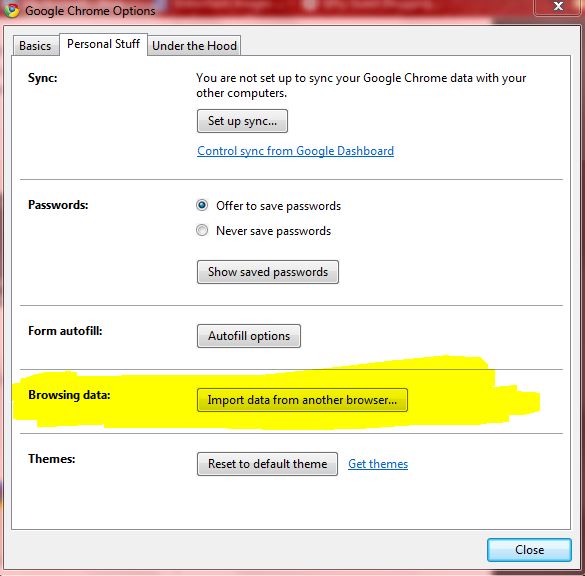
  • Select the appropriate boxes for the items you’d like to import. You can select to import your Favorites/Bookmarks, Search engines, Saved passwords, and Browsing history.
  • Click Import to bring your selected settings into Google Chrome.

If you enjoyed reading this post, please consider leaving a comment below or subscribing to the feed 😀

About author

Articles

Arun Wilson is a self-confessed tech and gadget freak. When he isn't busy navigating life, he loves sharing the latest updates on technology, internet security, and new gadgets. Connect with Arun: Follow on X | Facebook
Related posts
How-ToInternetLatest Updates

Building Your Own Private Cloud: A Raspberry Pi Home Storage Solution

In an age where data privacy and control are increasingly important, relying solely on commercial…
Read more
How-ToInternetLatest Updates

Unlock Your Reach: How to Drive More Traffic and Views to Instagram Reels

Instagram Reels have exploded in popularity, offering a dynamic way to share short, engaging video…
Read more
How-ToInternetLatest Updates

How to Build Your Own Private VPN Server Using Home Wi-Fi

Setting up a private VPN network using your home Wi-Fi can be a great way to secure your internet…
Read more

1 Comment

Comments are closed.