


Skype is launched with great features to help you stay in touch with friends, family and co-workers, share your thoughts and find the information you need. If you wanted to show someone your computer screen when it’s not possible to be physically next to them? Skype has a function that allows you to share your computer screen or to see the computer screen of someone else over the Internet in real time.
How to Share Desktop
1. Open Skype. Login with your credentials.
2. click on name of the user with whom you are going to share your computer screen.
3. Call him/her, In that window you can see share option.
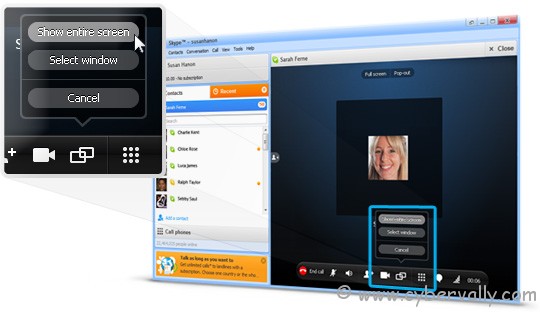
4. You can also share only a small part of the screen. It gives you the option to adjust the size of screen you want to share.
5. Your screen is shared now along with Skype audio call. You can use screen sharing for various purposes such as discussion about any issues in your computer, showing project status to your clients or collaboration purpose.
If you enjoyed reading this post, please consider leaving a comment below or subscribing to the feed

