

 In  Gmail,  you want to insert and send images as a part of the email message body. However, Gmail doesn’t provide a default option to insert images. The only option is to send the image as an attachment. But it is possible in Gmail via Gmail Labs. Embedding images in the Email message body is easy. Once the Labs feature is enabled, we will see the “Insert Image†option on  toolbar.
Steps to Setup
1) Click the Labs icon  at the upper right corner of your Gmail Inbox.
2) Now, scroll down and locate the Labs feature labeled – Inserting Images, and click on Enable
3) Click on Compose Email button on top left sidebar of your inbox.
4) Look for the “Insert Image†option on the Rich Formatting Toolbar.
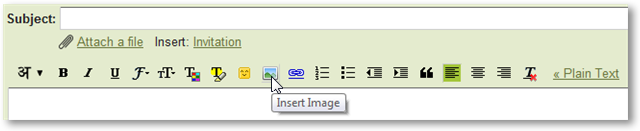
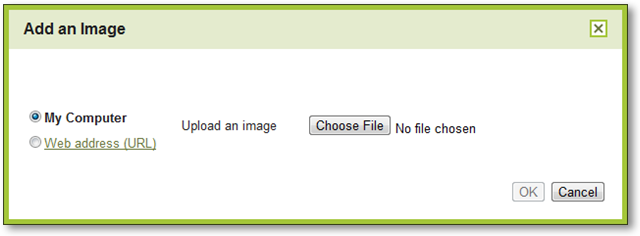
5) Click on the option and Gmail now lets you insert the image from your computer or from a URL
6) Resize the image to a desired size, complete you message and Send
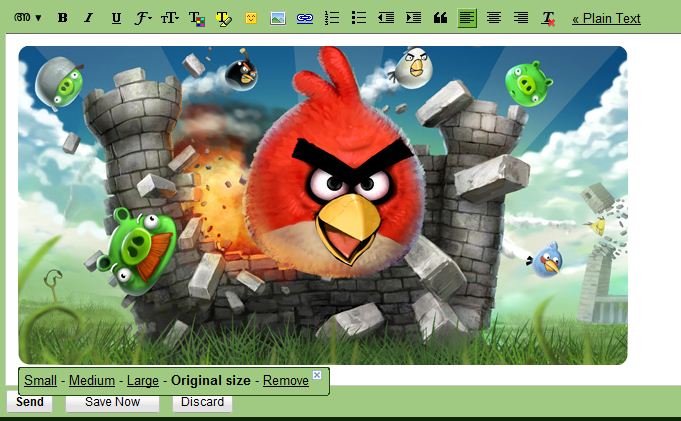
7) Yep! Done
If you enjoyed reading this post, please consider leaving a comment below or subscribing to the feed 😀


I followed your instructions down to number 7, but how do I bring up the options for the different sizes: Small – Medium – Large – Original size ?