


How-ToInternet

How to Import Bookmarks, Password and History From IE and Firefox to Google Chrome

If you are going to change web browser the hardest things is losing your bookmarks and saved passwords. Google have one solution for importing your datas into Google Chrome. By using this tool you can import datas from Firefox and Internet Explorer.

Steps To Setup

  • Go to Tools and Select Options
  • Click the Personal Stuff tab.
  • Click ‘Import Data From Another Browser’ and select the browser.
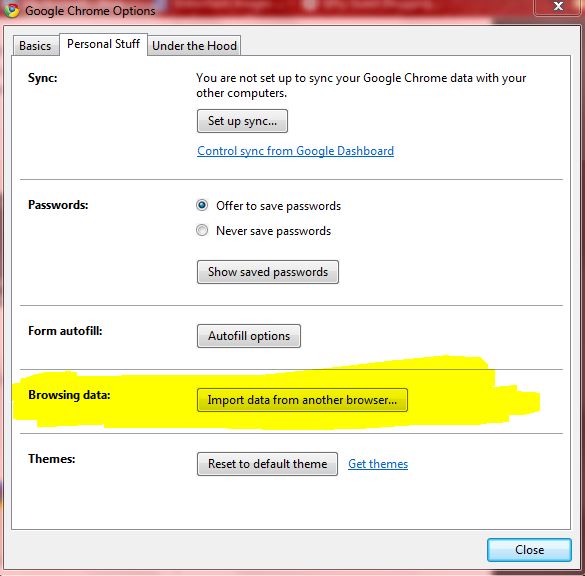
  • Select the appropriate boxes for the items you’d like to import. You can select to import your Favorites/Bookmarks, Search engines, Saved passwords, and Browsing history.
  • Click Import to bring your selected settings into Google Chrome.

If you enjoyed reading this post, please consider leaving a comment below or subscribing to the feed 😀

About author

Articles

Arun Wilson is a self-confessed tech and gadget freak. When he isn't busy navigating life, he loves sharing the latest updates on technology, internet security, and new gadgets. Connect with Arun: Follow on X | Facebook
Related posts
InternetLatest Updates

Beyond Passwords: A Guide to the Different Types of 2-Factor Authentication

If your online accounts were a house, a password would be the lock on the front door. It keeps…
Read more
How-ToInternetLatest Updates

Don't Toss It! How to Turn Your Old Wi-Fi Router into a Repeater

We’ve all been there: you upgrade to a shiny new Wi-Fi router to get better speeds, and your…
Read more
InternetLatest Updates

Top 5 Secure Applications for Sending Messages from Mobile

In today’s hyper-connected world, our smartphones are more than just communication devices; they…
Read more

1 Comment

Comments are closed.