

If you’ve got is a wired network at home or elsewhere, you want to connect your wireless devices to this network ? Now it is possible with new Windows 8 OS. In this article I am sharing the method to create the wi-fi HotSpot on your laptop with Windows 8. So Once you setup your laptop as HotSpot then you do not need a router, switch, hub, etc, so you can easily connect all of your device with this newly created wi-fi HotSpot in Windows 8.
What you need to setup a HotSpot
– Windows 8 Laptop with inbuilt Wi-Fi
– Wired Internet connection.
How to Setup Wi-Fi HoSpot in Windows 8
1. Go to Control Panel> Network and Sharing Center > Change adapter settings.
2. You can see Microsoft Virtual WiFi Miniport Adapter and Local Area Connection.

3. Open your local area connection properties and enable Internet sharing on your internet connected network card. Select the Microsoft virtual Wifi as home networking connection.
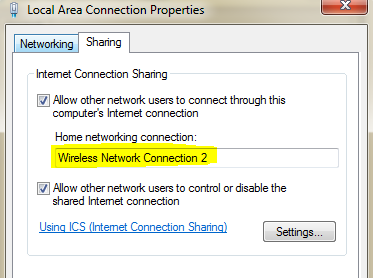
4. Open Microsoft Virtual WiFi Miniport adapter properties and uncheck all except IPv4
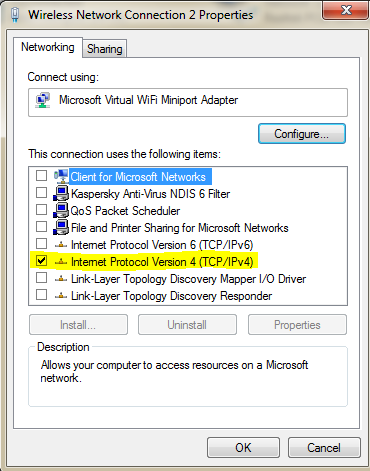
5. Now open command prompt in administrator mode ( Search CMD and instead of hitting the Enter key, use Ctrl+Shift + Enter )
6. For configures a Wi-Fi network with SSID “cybervally†and protected with the key “arunwilson†. Type this code in commad prompt netsh wlan set hostednetwork mode=allow ssid=cybervally key=arunwilson
7. Now you can enable your network with enter this code in cmd netsh wlan start hostednetwork
Yep! now your HotSpot is started and you can connect your mobile or ipod to this network.

8. If you want to stop this network, at the command prompt type netsh wlan stop hostednetwork
9. You can also Disable this Microsoft Virtual WiFi Miniport adapter using command netsh wlan set hostednetwork mode=disallow ssid=itgeekdiary key=typepassword
You can follow us on Twitter or join our Facebook fan page to keep yourself updated on all the latest from Microsoft, Google and Apple.


Hi
I can’t see my Microsoft Virtual WiFi Miniport Adapter.
Any idea?
Thanks
My device sees and connects to it but what about the DHCP settings, it doesn’t seem to provide those.
I manage to create the hotspot but it require a password. Tried a few and not successful connect.Â