

Google introduced a beta version of its Chrome Remote Desktop extension for the Chrome browser and Chrome OS. This is a remote desktop beta extension which let you control any computer with your computer through the Chrome browser by simply giving the authentication code. It is fully cross-platform, so you can connect any two computers that have a Chrome browser, including Windows, Linux, Mac and Chrome books. This remote desktop extension can only be installed if the user is logged into a Google account.
How to Use Chrome Remote Desktop Extension
1) Go to Chrome Store here.
2) Download and install Chrome Remote Desktop extension from Chrome store using Chrome browser.
3) In new tab go to Apps and click on Chrome Remote Desktop BETA app.
4) While accessing application for first time on your system it will ask for authorization. Press “Continue“
5) You should need a Google account for install it. If you are not logged in your Google account; login prompt will come before this screen. Press “Allow Access“.
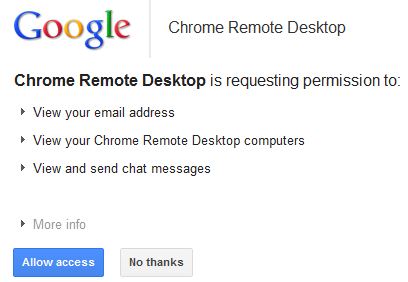
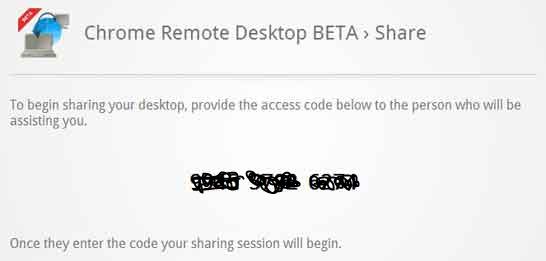
6) Now click on “Share This Computer†. Chrome will generate a 12 digit access code for your computer. This code will be generated every time you will share your desktop. Share this code with the person you want to share your desktop.
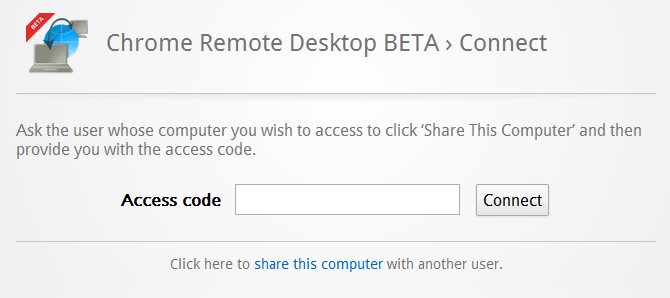
7) For access another computer you need to enter the 12 Digit Access code of the shared computer.
Chrome Remote Desktop requires access to TCP port 443 and 5222. While connected you can click the Disconnect button, Ctrl+Alt+Esc, or close the tab to end the remote session.
You can follow us on Twitter or join our Facebook fan page to keep yourself updated on all the latest from Microsoft, Google and Apple.

