


The main reason to disable right click on a website is to prevent visitors from downloading or stealing their images and contents by blocking right click. But it will no longer work as there are so many other ways to download an image and contents from a website without using the right click. Sometimes this is very annoying as you may need that content for your college project or some other urgent purpose.
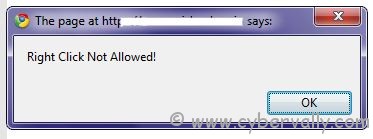
Here is the best and the most simple trick.You don’t require any software or addon for this trick. With the help of Java script website are block the right click. If  javascript code in your browser is blocked then your right click cannot be blocked.
( Note : Blocking JavaScript may result into unusual rendering of web pages)
Here is the steps on How To Enable Right Click on Websites
Internet Explorer Browser
– Goto Tools>Internet options>Security
– Now Click on Custom Level
– Now find Scripting Section it will be around the end.
– Now disable Active Scripting.
– This will disable JavaScript and vbscript in your browser.
– Click on OK.
– Now restart your browser
Mozilla Firefox Browser
– Goto Tools>Options>Content
– Uncheck the box Enable JavaScript
– Click Ok
– Open the website that have blocked your right click.
Google Chrome Browser
– Click on the Wrench Icon on the top right side on your browser.
– Click on OptionsNow goto Under the Hood tab
– Click on Content Setings and then on JavaScript
– Disable java script and open the website.
There are a lot of other tricks to bypass blocked right click. Here only discussed the most basic trick that you can use anywhere without any special software.
If you’re a Facebook user and want to keep up on the latest tricks and security news why don’t you join the CyberVally Facebook page?
If you enjoyed reading this post, please consider leaving a comment below or subscribing to the feed


For Firefox you don’t have to disable all of javascript, you can just disable the “disable or replace context menus” in the advanced button after the javascript option.
good…
All of these “tricks” will generally end with the page not loading the content at all, making the ability to now right click on elements somewhat useless.