

Your home Wi-Fi router is the digital front door to your house. It connects your phones, laptops, and smart devices to the internet, but if left unsecured, it can also let uninvited guests in. A compromised network can lead to stolen personal data, bandwidth theft, or malware infections.
The good news? You don’t need to be a tech wizard to lock it down. Here are five simple, high-impact steps to secure your home network today.
1. Change the Default Name (SSID) and Password
Most routers come out of the box with a default name (like “BrandName-1234”) and a default password printed on a sticker. Hackers know these defaults.
- Change the SSID (Network Name): Give your network a unique name that doesn’t reveal your address or personal info (e.g., avoid “SmithFamily_Apt4B”).
- Create a Strong Password: Use a passphrase rather than a complex word. For example,
Blue-Coffee-Mug-2024!is easier to remember and harder to crack thanP@ssw0rd1.
2. Enable the Strongest Encryption
Encryption scrambles the data sent over your network so that even if someone intercepts it, they can’t read it.
- Look for WPA3: This is the newest and most secure standard. If your router supports it, turn it on.
- Stick to WPA2 (AES) at minimum: If WPA3 isn’t available, WPA2 is the industry standard.
- Avoid WEP: If you see “WEP” as an option, do not use it. It is an outdated standard that can be cracked in minutes.
3. Keep Your Router’s Firmware Updated
Just like your phone needs iOS or Android updates, your router needs software updates (called firmware) to patch security holes.
- Check for Auto-Update: Many modern routers have an “Automatic Update” feature in their settings. Enable this to ensure you are always protected against the latest threats without having to lift a finger.
- Manual Checks: If your router is older, set a reminder on your calendar to check the manufacturer’s app or website for updates every 3–6 months.
4. Set Up a “Guest” Network
Most routers allow you to create a separate network specifically for visitors. This is a massive security win for two reasons:
- Privacy: You don’t have to give out your main Wi-Fi password to the babysitter, neighbors, or friends.
- Isolation: If a guest’s phone is infected with malware, the Guest Network keeps that infection away from your sensitive devices (like the laptop you use for banking).
Pro Tip: Put your insecure “smart home” devices (like cheap smart bulbs or fridges) on the Guest Network too. They are often less secure than computers, so it’s safer to keep them isolated.
5. Disable Remote Management
“Remote Management” (sometimes called “Remote Administration”) is a feature that allows you to log into your router’s settings from anywhere in the world.
Unless you are a network administrator who needs to fix your home internet while on vacation, you likely do not need this. If hackers find this port open, they can try to brute-force their way into your router’s admin panel. Turn this feature off in your router’s settings to ensure that settings can only be changed by someone physically inside your home.
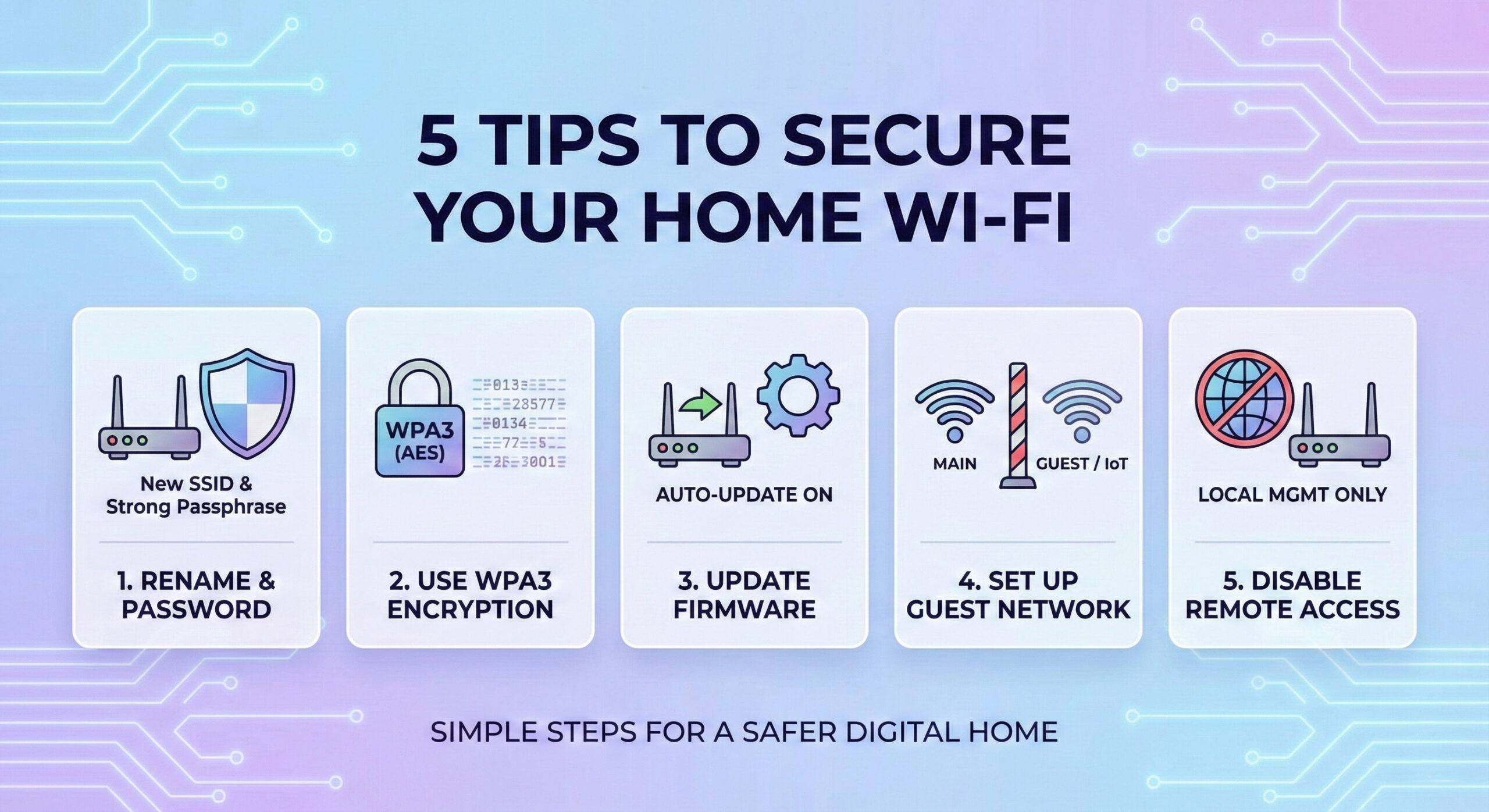
Summary Checklist
- [ ] Rename Network & Change Password
- [ ] Set Encryption to WPA2 or WPA3
- [ ] Turn on Automatic Firmware Updates
- [ ] Create a Guest Network for visitors/IoT devices
- [ ] Disable Remote Management
By taking 15 minutes to adjust these settings, you make your home a much harder target for cybercriminals.