

Google Plus is becoming famous day by day and many people loving it than Facebook. Here, I have come with a solution which lets you download your Google plus complete album to your computer. This option not only for take a back up of your photos but also you can take back up of all your data likes Profile Data, Stream Data, Buzz Data, Circles and Contact Data etc. You just need follow below steps to download entire album to your computer.

How to Download your photos and albums from Google+
Step 1 : Log in to your Google Plus account.
Step 2 : Click on the setup icon present on the top right corner and select “Google+ settings“.
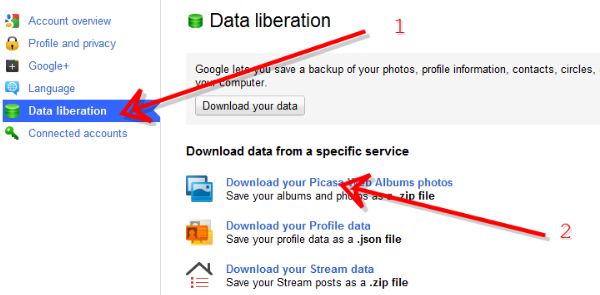
Step 3 : Click on the tab “Data liberation†present on the left hand side and click on the “ Download your Picasa Web Albums photos†tab.
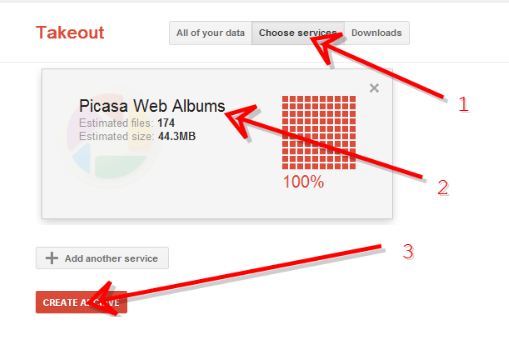
Step 4 : Then click on the “Choose Services”. Step 5 : Now you can see estimated files and the size. Click on “Create Archeive†button.
Step 6 : Next window you can see create file and click on the “Download†button.
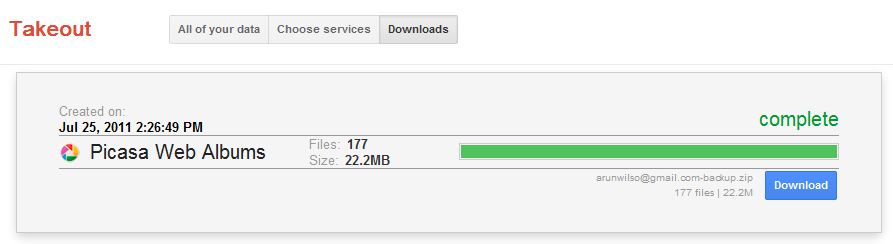
Step 8 : Download will take some time based on number size.
If you’re a Facebook user and want to keep up on the latest Google+ Tricks, why don’t you join the CyberVally Facebook page?


how about other’s google+?
mateen